UN-AI YOUR INTERNET
[
Click each section to begin.
]
The State Of Things

The scourge of LLMs have been shoved down our throats by our techbro overlords because it allows them to demonstrate that more and more people are using the things they have spent so much money investing in. Never mind that we aren't interested. Never mind that the thing they have labeled as "AI" isn't anything like what they are actually selling it as. The more people "using" the technology, the easier it is to sell the technology, even if in this case the word "using" is doing a lot of heavy lifting for "we bundled it with everything so it looks like more people are using it."

"Agents" and "assistants" are the new buzzwords, but it's all the same thing: A complex algorithm that uses predictive text to piece the most likely, most used words together as a response to a prompt. The reason we haven't had these things until now is that processors and storage medium weren't powerful enough and cheap enough to brute force a response built from entire libraries of stolen data. This isn't a machine that thinks, its a decent simulation of what that might look like, using the power of ultra-fast processors generating "most likely" predictive responses. It's a scam. It's snake oil. And because its so ubiquitous, it's actually likely to get in the way of real AI development. It's the worst, most inefficient way of simulating a real AI.

There are two paths: one path is the slow, laborious process of teaching a burgening intelligence how to think, how to process, and how to reason. We are a hundred years from that. The other path is to use predictive algorithms and reams of stolen data to inefficiently brute force a response that "seems like something an AI might say," and you can guess which path the techbros selected. The path that gives them results, sort of, right now, allowing them to ride the bubble until it bursts, hopefully long after they've retired to a tropical paradise somewhere, leaving us all relying on LLMs that frequently generate plausible sounding responses that are 100% wrong. I'll be putting "AI" in quotes whenever I use it, because I resent that they've short changed us with this nonsense masquerading as actual artificial intelligence.

So What Can We Do?

You can, with some effort, remove or disable every instance of "AI" infecting your internet. It's a pain in the ass, but fortunately there are a number of tools available that make it a little easier. That is the main focus of this website.

You can, by doing some homework, stop supporting artists, writers, and developers who use "AI" in their work.

You can reject software that bundles "AI," if there is an alternative application. (There are fewer and fewer applications that are "AI" free.)

The important thing is that this doesn't have to be something we just have to deal with from now on. Remember when everyone was very excited about NFT and blockchain technology for no reason? The difference is that every techbro and compute manufacturer has invested heavily in AI, so waiting out this particular bubble will be a lot harder, because they're going to be pushing it into your life to justify their investment. We're currently in a circular shitshow where AI hardware manufacturers, developers, and datacenters are just cycling the same money around and hoping nobody notices, and if they stop, the whole thing implodes, so it behooves them to never stop.

While we wait, you can start blocking, uninstalling, and disabling the "AI" that comes pre-installed with your phone, tablet, laptop, and various applications you might use.

A screenshot of a social media post by user 'JellyTBeagle@plush.city' that reads '20 years ago normal people avoided technology and techies would jump on the newest gadgets as soon as they could. Now normal people buy smart toasters & coffee mugs while every techie I know is on the verge of retreating into the forest.'
Un-Fuck The Internet: The Steps

This is a complicated subject, and it covers more than just AI. How do you want the internet to look? To operate? There are two distinct opposing thoughts here. The first is that the internet should be tightly controlled, to protect you and to ensure that you are seeing and experiencing exactly what the company that makes your computer or device wants you to see. This is part of the "walled garden" paradigm that is largely attributed to apple. The other path is for you to control how the internet looks when it's delivered to your computer or device. You determine how the experience goes. This is less safe for you, as a user, because you can't depend on the walls of the "garden" to protect you. You'll have to learn how to do that yourself. But it does allow you freedom that the users in the walled garden will not be able to enjoy.

Here are the steps. We'll cover more detail on each section below.

Step One: Stop Using Google Search. I know, that's very difficult for a lot of people. But the reality is that it's easier to use another search engine altogether than it is to repair all the "AI"-based damage that google has inflicted on its search engine. You can do it, with enough extensions, but why bother?

Step Two: Stop Using Chrome. You will need to start using a different browser, because google is slowly (and sometimes not-so-slowly) killing the ability of its users to modify the way chrome works. They do this in the name of security, but the reality is, google makes money selling ads and your data, and extensions that keep them from doing those two things cannot be allowed to exist on their browser. So the second thing you need to do to un-AI your internet is to un-google your browser, just like you un-googled your search engine. This will allow us a lot more control over various aspects of your internet use.

Step Three: Extensions. Specifically, we'll be installing either uBlock Origin or uBlacklist, two extensions which can be used to block websites. uBlock Origin allows us to also block website elements and other things throughout the internet, whereas uBlacklist only blocks sites from search results.

Step Four: Block Lists. These are lists people have compiled of known "AI" websites and youtube channels and other things. Thanks to these lists being public, we don't have to block each of these sites one-by-one, we can just install an already made list.

Step One: Stop Using Google Search

Google has become synonymous with "search," but it didn't used to be that way. There were once hundreds of different search engines, and people used the ones that they liked more than the others, for various reasons like the UI or the types of results, or because of where and how it searched. Some of those engines are still around, but they've been bought and sold and absorbed and split off and redesigned so many times that it's hard to tell where they are pulling their results from at this point.

However, there are modern search engines that are not google, and which I can certainly recommend. Indeed, you should switch to one of these immediately:

DuckDuckGo Search, with the "noai" subdomain, is the search engine I would recommend for most users. It's free, it comes with several settings you can adjust to your liking (click on the 3 bars in the upper right and select "settings" or just go to noai.duckduckgo.com/settings), and it's fairly good at returning relevant results. Using the "noai" affix in the address automatically disables all of DDG's "AI" features, but you can also turn them off in the settings. It also has a setting for "Hide AI Generated Images" that is... relatively good at doing what it says. It really tries hard, but there is so much "AI" "Artwork" flooding the internet, that you can expect some of it to slip through. Though DDG states that it pulls results from several sources, it seems to rely heavily on the Bing index for a sizable portion of its results, based on the whole thing failing when there was a bing outage in 2024.

Kagi (Kah-gee) is the next search engine I recommend, and it's probably the best non-google search available, at the moment, in terms of results and reach. Kagi is one of the only modern search engines that maintains its own index (so it doesn't rely on google or bing or yahoo for its results) and prioritizes non-commercial websites (though commercial websites do appear in the results as well) which leads to a more "small web" feel. The phrase "If you don't know what the product is, you are the product" (alternatively: "If you're not paying for the product, you are the product") is at the heart of Kagi, and they reiterate over and over again that there are no ads and they are not collecting or selling your information. This is great, but it also means you have to pay for a subscription to Kagi in order to use it. Kagi is not free. The cost is tiered, with $10/month being the cheapest plan with unlimited searches. Kagi does have "AI" features, but they are opt-in and can be ignored or disabled.

Brave Search is a search engine from Brave Software, Inc. the company that makes the Brave browser (More on the browser later). Like Kagi, brave maintains its own index, though it uses google as a fallback when the index fails to return results. Unlike Kagi, brave search is free. This is where you wonder if you are the product, and indeed, you are. Brave sells ads, which are anonymous (unlike google's adsense ads) and conform to its own (fairly stringent) privacy practices, and which appear throughout its results. If you would prefer not to see ads at all (and still want to support brave search) you can subscribe for $3 a month or $30 a year, which removes all of brave's ads. However, you must use the brave browser for the ad-free subscription option. Brave is a good choice if you want a free search with its own index, and a robust privacy policy. Its results are largely in line with DDG. Brave has "AI" features, but they can be turned off easily in the settings.

Some of the old engines still exist, sort of:

Dogpile.com / Metacrawler.com / Webcrawler.com / startpage.com are all owned and operated by System1, an "internet advertising company." Upsides? None of them are google, and none of them have AI features (though startpage's settings includes links to vanish.ai, a private AI model). Downsides? It's an internet advertising company. All of these are "meta" searches, in that they use the indexes of multiple search engines, including google and bing. I think I would use DDG or Brave if you need a free search engine. Still, these aren't google, and metacrawlers return the top results from multiple engines at once, so if you don't want to use DDG, Kagi, or Brave, you could do worse. Probably. Remember that this is how to Un-AI your internet, not how to privacy lock your internet (though the two often go hand-in-hand) so it's up to you if you care that System1 is probably compiling and selling your data.

Step Two: Stop Using Chrome

In this section you'll be dropping chrome like the absolute shitshow that it's become, and picking up a different browser. If you've already been using chrome for a while, this might come with some small learning curve, but probably not. Nearly every modern browser will happily import your bookmarks and saved passwords from any other browser, and it will probably ask you if you want to do that during the install. You can create a mozilla account and sync your bookmarks and passwords between any browser that is based on firefox (which will be the first 5 browsers listed here) including mobile firefox and mobile waterfox.

Firefox (Windows/Mac/Linux/Android/iOS-sort of) is probably the easiest alternative to chrome. Whether or not it's the best alternative is up to a lot of subjective preferences. Firefox (and all of its forks) allows us to freely install extensions, which we will use to modify the way the internet is delivered to you. Firefox is a Mozilla client, which runs on the "Gecko" browser engine. Gecko is free and open source, and so many of the Chrome alternatives we will list here use it. By creating a mozilla account, you can log into Firefox and sync your passwords, bookmarks, tabs, etc, between the mobile and desktop version. Firefox has a mobile browser which provides most, if not all, of the same exact features the desktop browser provides, and can be found on your device's app store, though the iOS version (because of apple policies) is much less useful than the android version. If you are on a mobile apple device then your options are unfortunately a lot more limited. Firefox ships with some AI features, but there is now a switch in the settings that allows you to turn it all off, all at once.

Floorp (Windows/Mac/Linux) is a fork of firefox that focuses on customizability. Back in the early days of firefox, you could change the layout of the UI pretty much at will in a lot of different configurations. Mozilla significantly reduced customizability (without modifying chrome.css) sometime in the early 2000s. Floorp brings all of that back, and adds some more, making it maybe one of the most customizable of the current browsers. If you want to be able to decide where your tabs appear and what they look like and all kinds of other things, without modifying the user file manually, then Floorp is the way to go. Floorp uses the same mozilla account as every other firefox based browser to sync tabs and passwords and whatnot. Sadly, floorp does not have a mobile version, but syncs just fine with firefox mobile and waterfox mobile. Floorp ships with the same AI features that standard Firefox ships with, and the same single switch to turn it all off in the settings.

Waterfox (Windows/Mac/Linux/Android) is a fork of firefox, and uses the open source Gecko engine from Mozilla. Waterfox has the same general features supported by firefox, but with a more chrome-like UI. If you liked chrome, then this might be the firefox fork for you. Waterfox allows you to use all the same extensions as firefox, and will sync with your mozilla account, if you want to sync passwords, bookmarks, and tabs, etc. While waterfox is available on Desktop and Android, it is not available on Apple devices. Waterfox does not include an "AI" agent by default.

Librewolf (Windows/Mac/Linux) is another fork of Firefox, but it's massively focused on privacy. If firefox is a fortress, Librewolf is a hardened, underground bunker. Librewolf is so focused on privacy and security that it might make browsing the web inconvenient, especially for novice users. It integrates with a Mozilla account for syncing, and allows the same extensions. While Librewolf is available for many desktop environments, it does not have a mobile version. Librewolf does not include an "AI" agent by default.

Zen Browser (Windows/Mac/Linux) is built on Gecko, so is a firefox fork, but its interface is completely different from the usual. Zen's layout is actually different from the majority of other browsers, and so you either like it or you don't. It's heavy on privacy, it doesn't collect any user data, and it can install the same extensions as firefox, so you can use it for our purposes here, like the rest of these browsers. Just be aware that it's different. Maybe better, maybe worse, depending on how you feel about side bars and tab layouts.

If you are on iOS (using an iphone or ipad) then thanks to apple's walled garden policies, things are a little more interesting. You have essentially three options: The Orion browser, the Brave browser, or the default Safari browser (way less effective).

Orion (Mac/iOS/iPadOS) is a browser made by Kagi, the same people behind the Kagi search engine (The browser is free, unlike the search engine). Orion supports some essential extensions out of the box, and may or may not support extensions from firefox, chrome, and apple, depending (apparently) on the extension. It's based on webkit, which is the engine that drives Safari, but its been heavily modified. The important thing is that it supports the firefox version of the uBlock Origin extension by default, which is what we'll be using. Orion uses its own sync on icloud to share passwords and bookmarks and whatnot between devices. This seems to be tied into your apple account, but I am not a mac guy and your mileage may vary. It does seem very easy.

Brave (Windows/Mac/Linux/Android/iOS/iPadOS) is a popular browser with a built in adblocker that replicates a lot of the things we'll be using extensions to do on the other browsers. This means that you can use it on iOS and iPadOS, where you can't install uBlock Origin. The steps for adding custom block lists to its built-in adblocker (which we will cover in the extension section) will be a little different, but it operates essentially the same. Brave is free, but has caught some flak in the past for some design and policy decisions concerning ads. Brave is a fork of chrome, but the fork happened long enough ago that it remains unaffected by google's recent decisions to neuter chrome's ability to block ads (and also "AI"). Note that Brave has its own "sync" for passwords and bookmarks and other data to share between devices, and this seems to be slightly more complicated, but maybe more secure? It's hard to say. Brave is the recommended browser for iOS and iPadOS.

You can also use Safari (which I won't bother linking, since it's already pre-installed on your i-device), but the process will be a little different than with these other (better) 3rd party browsers, and will be significantly less effective. We'll cover the differences in the extension section.

I'm going to assume that you know how to install a browser on whatever device you are using. If not, then each of these browsers has a pretty self-explanatory "DOWNLOAD" button. You'll click that, save the file somewhere on your device, and then run the file. Or if you're on a mobile device, you can visit whichever app store your device uses, and search for the browser there. If a browser has a mobile version it will more than likely have a link to the app store on the website.

Though I don't know how you would do it, I am not responsible if you somehow blow up your device while attempting to install a browser.

Step Three: Install Extensions

Extensions are add-ons that change the way the net works with your browser. Extensions are client-side only, which means it changes the way the internet is displayed for you, on your machine. Extensions essentially sit between your browser and the internet, and adjust things on the fly as your browser loads a website. This is a very simplified explanation, but for our purposes you only need to know that extensions input the internet, modify it in various ways, and then output the result to your browser to be displayed for you. The best example of an extension is an ad blocker. The internet (full of ads) hits the ad blocker extension in your browser, and then those ads just don't get rendered by your browser. You can use extensions to completely change how web pages look (for you, on your browser), how they operate, and how the flow of information between you and the internet works. Extensions can be very simple single-purpose scripts, or very powerful suites that effect everything you do on the net.

For the purposes of Un-AIing your internet, we will focus on two extensions: uBlock Origin and uBlacklist.

Firefox, Floorp, Waterfox, Librewolf, Zen, Orion: Install uBlock origin.

Safari: Install uBlacklist.

Brave: Don't bother with uBlock Origin or uBlacklist, we'll be using Brave's built-in ad blocker.


Click the name of the extension to go to the installation site.


Ublock Origin is a very powerful tool that lets users completely override and subvert how websites are displayed on their machines, using custom filter lists. This means we can completely block all ads, everywhere, all at once. It also means that we can use it to block websites generated by or using "AI" from appearing in search results or anywhere else on the internet. Ublock Origin allows us to block anything on the internet from being part of our internet, and we will use it to virtually eliminate "AI" elements on the internet from ever appearing in our browser as we surf the web. This solution is not perfect. New "AI" websites and elements are showing up all the time, and uBlock Origin can only filter things that have been added to its block lists. Even so, installing the extension in your browser and adding some specific anti-"AI" custom filter lists will significantly cut down on the amount of "AI" garbage you have to slog through.

uBlacklist eliminates specific sites from appearing in search results. That's all it does. This replicates part of what we can do with uBlock Origin, but if you want to use Safari on iOS, this is essentially your only option, due to apple's walled garden policies. I highly recommend you get the Brave browser or Orion browser on iOS or ipadOS instead of using safari with ublacklist. After you have installed the extension, go to Settings-> Safari-> General -> Extensions -> Ublacklist-> Permissions & Settings, and change the permission from "ask" to "allow" on whichever search engine you use (or all of them).

Step Four: Subscribe to "AI" block lists

Now that we have our extensions installed, we can add "AI" block lists to them.
Adding block lists to uBlock Origin

Adding a block list to uBlock Origin on desktop:

1. Click on the uBlock Origin icon on the upper right section of your browser window. it looks like this:


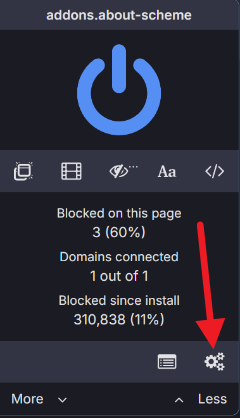
2. Select the gear icon on the panel that appears:


NOTE: If you do not have the icon in step 1, you can also get there by typing "about:addons" into the address bar of your browser and hitting enter, then locating Ublock Origin in the list of extensions, clicking on the three dots on the right side, and select "options."

If the uBlock Origin extension isn't listed in the extensions window, then you failed to install it correctly.


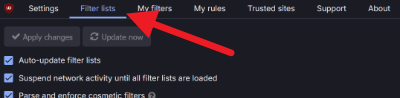
3. You should now be on the uBlock Origin options screen. It should default to the "filter lists" tab, but if not, click on the "filter lists" tab.


4. Scroll down to the bottom of the "filter lists" page, until you see "import." Click the arrow if the text box is not visible.


5. Paste the following addresses into the text box, one per line:
https://raw.githubusercontent.com/alvi-se/ai-ublock-blacklist/master/list.txt
https://raw.githubusercontent.com/laylavish/uBlockOrigin-HUGE-AI-Blocklist/main/list.txt
https://raw.githubusercontent.com/Stevoisiak/Stevos-GenAI-Blocklist/refs/heads/main/GenAI-Blocklist.txt

It should look like this:

it doesn't matter what order these are in, as long as there is only one address per line.

NOTE: These addresses were accurate at the time this page was written, but you can go to each of their github pages and get the addresses yourself if you would like:
AI uBlock Origin Blacklist
uBlockOrigin & uBlacklist Huge AI Blocklist
Stevo's GenAI Blocklist
You can also look through these pages to see what kinds of things each list is blocking.

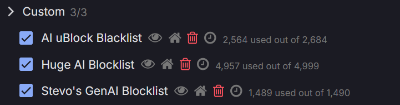
6. click the "apply changes" button at the top of the "filter lists" page. This will add these filters to your custom filters:


7. that's it. uBlock Origin is now ready to begin filtering AI garbage off of your internet. You can close the uBlock Dashboard tab in your browser and use the internet as per normal.


Adding a block list to uBlock Origin on firefox or watefox mobile:

This is basically the same process, but we'll be "tapping" instead of "clicking." I'm not going to bother with pictures for this.

1. Open firefox mobile, and tap the three dots at the upper right of the app to open the menu.
2. tap "extensions."
3. tap the uBlock Origin extension.
4. tap "settings."
5. from this point on, its exactly the same as desktop. Scroll down to the bottom of the "filter lists" tab.
6. Paste the same addresses from the desktop instructions into the import text box.
7. Tap "Apply Changes."
Adding block lists to Brave's built-in ad blocker

Adding a block list to Brave's built-in ad blocker on desktop:

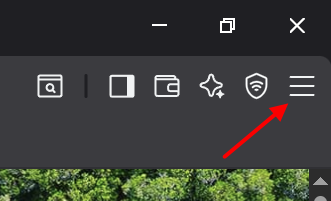
1. Click on the settings icon in the upper right corner of the Brave browser window. It looks like this:


2. Click on "Settings" at the bottom of the window that pops up.


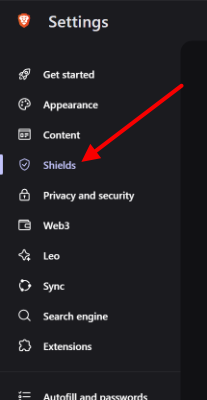
3. Click on the "Brave Shields" tab on the next screen to bring up the built-in ad blocker settings.
br>

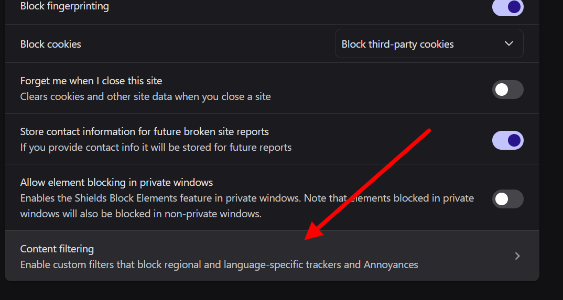
4. Click on "Content Filtering."


5. Scroll down to "Custom Filters."


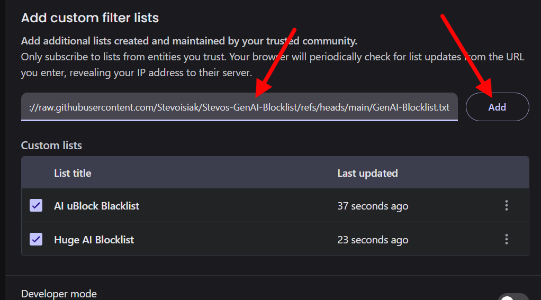
6. Copy/Paste the following addresses into the custom filters text box and hit "Add," one at a time.
https://raw.githubusercontent.com/alvi-se/ai-ublock-blacklist/master/list.txt
https://raw.githubusercontent.com/laylavish/uBlockOrigin-HUGE-AI-Blocklist/main/list.txt
https://raw.githubusercontent.com/Stevoisiak/Stevos-GenAI-Blocklist/refs/heads/main/GenAI-Blocklist.txt


NOTE: These addresses were accurate at the time this page was written, but you can go to each of their github pages and get the addresses yourself if you would like:
AI uBlock Origin Blacklist
uBlockOrigin & uBlacklist Huge AI Blocklist
Stevo's GenAI Blocklist
You can also look through these pages to see what kinds of things each list is blocking.


That's it, for desktop. You can now close the settings tab.


Adding a block list to Brave's built-in ad blocker on mobile:

The good news is that this is essentially the same processes as desktop, with the following differences:

The settings window is accessed by tapping the 3 lines at the bottom right of the browser window:


The built-in ad blocker settings are under "Shields And Privacy:"


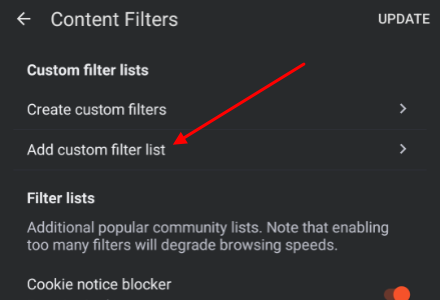
And the button for "Add Custom Filter Lists" is right up at the top of the "Content Filters" screen:


Everything else is exactly the same.
Adding block lists to uBlacklist

Adding Block Lists to uBlacklist On Desktop (or mobile, they are the same).
Remember that you should only be installing uBlacklist on safari. A much better option is the Orion browser with uBlock Origin installed, or the Brave browser, with its own built-in ad blocker.

I do not have an idevice, so I'll be reprinting the instructions found here.

1. Go to Settings-> Safari -> General -> Extensions -> uBlacklist -> Extension Settings to open up ublacklist's settings panel.

2. Scroll down until you see the "subscription" tab, and click on the "add subscription" button.

3. Name the new list (whatever you want)

4. Copy/paste one of these addresses:
https://raw.githubusercontent.com/alvi-se/ai-ublock-blacklist/master/list.txt
https://raw.githubusercontent.com/laylavish/uBlockOrigin-HUGE-AI-Blocklist/main/list.txt
https://raw.githubusercontent.com/Stevoisiak/Stevos-GenAI-Blocklist/refs/heads/main/GenAI-Blocklist.txt

5. Set the update interval to whatever you want.

6. Repeat steps 3-6 for each of the three addresses.

NOTE: These addresses were accurate at the time this page was written, but you can go to each of their github pages and get the addresses yourself if you would like:
AI uBlock Origin Blacklist
uBlockOrigin & uBlacklist Huge AI Blocklist
Stevo's GenAI Blocklist
You can also look through these pages to see what kinds of things each list is blocking.